
Intro to Funnels
Build Your Funnel
Edit Your Funnel
The Consult Funnel
Consult Funnel Pages
Consult Funnel Emails
Keys to a Successful Funnel
Prepare to Launch
Test your Funnel
Funnel Diagrams
Consult Funnel Walkthrough
INTRO TO FUNNELS
Brochure Website vs. Funnel
BROCHURE WEBSITE
What is a Brochure Website?
Brochure Websites have multiple pages that people can browse through in any order.
You might see a Home Page, About Me, Services, Success Stories, Contact Me.
Example of Brochure Website
Here’s our Thrive Academy Brochure Website ↗️.
Benefits of a Brochure Website
Your people get to browse at their own pace.
Your Brochure Website can increase your Credibility.
You can show the success story section of your website to potential clients on Consults.
Challenges of a Brochure Website
Websites usually don't inspire your potential clients to take action. They often leave websites thinking... I'll come back later."
FUNNEL
What is Your Funnel?
Your Funnel is a series of webpages. On each webpage, you can either:
A | Go to the next step in the funnel or
B | Leave the site.
The first step of every funnel is to invite them to opt in with their name and email address.
If they don't take the next step(s), they will automatically get emails, inviting them to take the steps with you.
Benefits of a Funnel
Funnels are way more effective at inspiring people to take steps to become your client.
Examples of Funnel Next steps
Opting in for your Free Gift or Free Event.
Applying for a Consult.
Scheduling a Consult
Our Summit Funnel ↗️ invites people to opt in to the Client Attraction Summit.
Where do you Send New People?
When you are engaging with people on social media, your email list, your workshop or speaking gig, a podcast, etc... we recommend sending all of these new people to your Funnel. :) Because once they opt in, you can stay in front of them until they opt out.
Why Funnels are so Amazing
In 2007, we (Jesse & Sharla) created our first funnel with a homemade video and simple funnel that we pieced together... We made $732,000 that year from people who went through that funnel.
It wasn't until 2013, when we had already made many millions of dollars, when we finally got a traditional website (which we only use for credibility).
We've gone on to make over $30 Million Dollars in sales from people who have gone through our funnels.
How Long Will This Funnel Take to Launch?
Funnels can supercharge your client attraction ability
This is because they automate the process of client attraction.
How long will it take to launch my funnel?
Launching your funnel can take months or years... it's a steep learning curve that involves tech prowess, copywriting, graphic design, and business strategy… which is why most gifted Coaches and Holistic Practitioners never launch.
Thrivers who build their funnel themselves (using our 80% done-for-you templates) still take a looooong time to finish it, depending on their skill level.
If we build it for you, we will build it in 2 weeks - 2 months (depending on how many Thriver funnels are in the queue before you).
Avoid Embarrassing Mistakes
This is your funnel that represents your business… so it’s important that you take full responsibility for it.
Before you launch your Funnel, even if we build it for you, it’s essential to:
1 | Read through THIS ENTIRE Walkthrough (and watch all the videos).
2 | Fully Test your Funnel using the Test Your Funnel Section below. ⬇️
Having a funnel is NOT a magic pill
Once you build your funnel, the next step is to optimize it.
Your funnels will bring in more clients as:
1. You send more people to your funnel.
2. Your Copywriting skills get better.
3. You have more success stories.
4. Your branding and photos get better.
Thrive Machine App!
Would you like to be able to access Thrive Machine on your phone?
This is great for finding your contacts, emailing and texting them, and accessing your calendar (with all of your consult and client appointments)... All while you're on the go!
The app is called: Lead Connector.
You can find it on App Store or Google Play (and it's free to download).
BUILDING YOUR FUNNEL
How to Build Your Funnel Yourself
Step 1 | Get Fully Onboarded in the Thrive Machine
Haven't gotten fully onboarded?
After you log into the HUB
Go to Thrive Machine / Get Onboarded ↗️
Step 2 | Read the Rest of this Funnel Walkthrough
Missing even one section could create a roadblock later.
Step 3 | Build This Funnel
Use the Consult Funnel Checklist ↗️
Step 4 | Ask for Support
Log into the HUB,
Go to Thrive Machine Page / Get Support to discover the 24/7 support available to you.
Step 5 | Test & Launch Your Funnel
Use the "Test Your Funnel Before Going Live" Section below to fully test your funnel before launching.
If you don't want to do all of that work, Thrive will build the funnel for you. See the next section for details.
Thrive Will Build Your Funnel For You!
Step 1 | Get Fully Onboarded in the Thrive Machine
Haven't gotten fully onboarded?
After you log into the HUB go to Thrive Machine / Get Onboarded ↗️
Step 2 | Earn or Purchase 1,000 Coins
Option 1: You get 1,000 Coins by getting 100,000 Points. Points convert into coins automatically.
Points never decrease. Coins decrease when you spend them.
Option 2: Buy Coins. You can buy 100 Coins for $100 and 1,000 Coins for $1,000. 1,000 Coins is the price of each funnel.
Step 3 | Purchase Your DFY Funnel with Coins in the Thrive Shop
To purchase a Done-For-You Funnel, go to the Thrive Shop ↗️ and choose the Funnel you want Thrive to build.
Step 4 | Follow the process in the Thrive Shop
Once you use your coins to pay for the funnel, you'll need to fill out 3 forms:
・An Agreement Form;
・Step 1 Form; and
・Step 2 Form.
Once we receive these 3 forms, and everything you submitted looks good, Thrive will build your funnel for you.
You can expect to receive your DFY funnel, ready to launch, within 2 weeks - 3 months of submitting the Step 2 Form.
Step 5 | Maintain and Optimize Your Funnel
Once your funnel is delivered to you, you will be 100% responsible for maintaining it and optimizing it.
Fortunately, we have a lot of support available for you.
To access our support, Log into the HUB,
Go to Thrive Machine Page / Get Support.
Which Funnel Do You Create First?
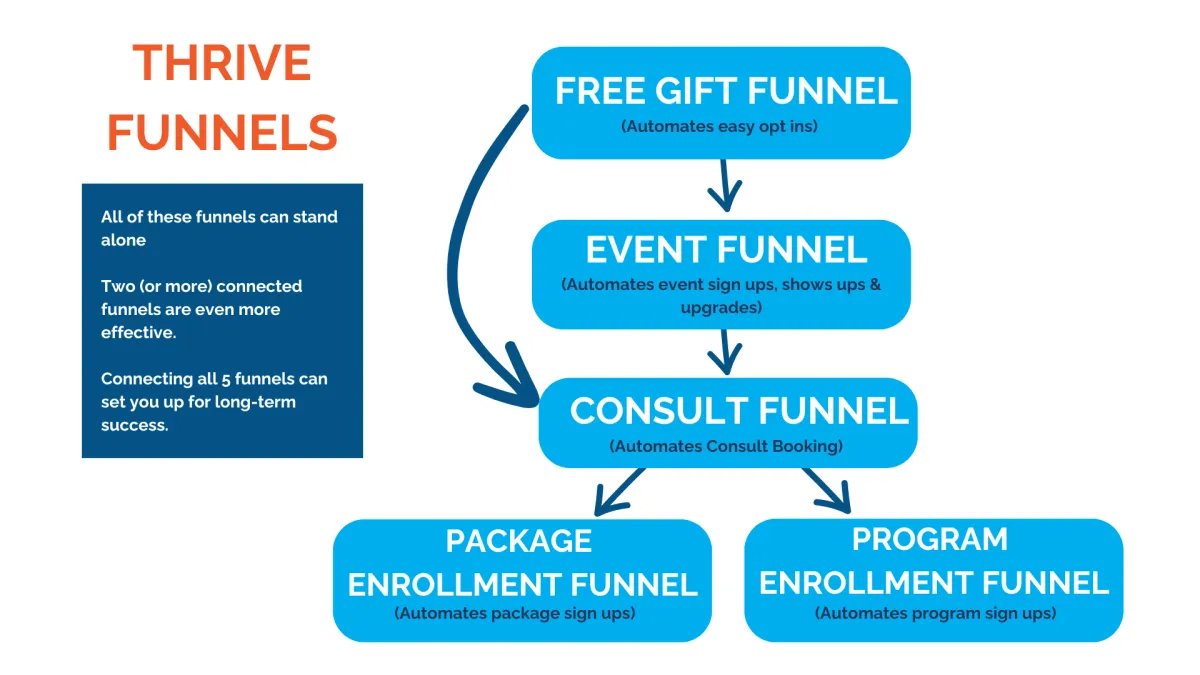
The Thrive Funnels fit like a puzzle. Having all 5 funnels is most effective. But each funnel stands alone and can help you get more clients with ease.
CLIENT ATTRACTION MASTERY | YOU HAVE ACCESS TO 2 FUNNELS
Mastery Members have access to Consult Funnel and Package Funnel only.
If it's most important to automate consult booking, build Consult Funnel first.
If it's most important to be able to take payments, do Package Funnel first.
THERE ARE 5 PLATINUM FUNNELS
1. Consult Funnel:
Intended Result: Book MORE consults (with less effort).
2. Free Gift Funnel:
Intended Result: Grow Your Email List Faster (by getting the HIGHEST % of Opt-Ins).
3. Event Funnel:
Intended Result: Get more Event Sign Ups, Event Show Ups, and Upgrades (after the event).
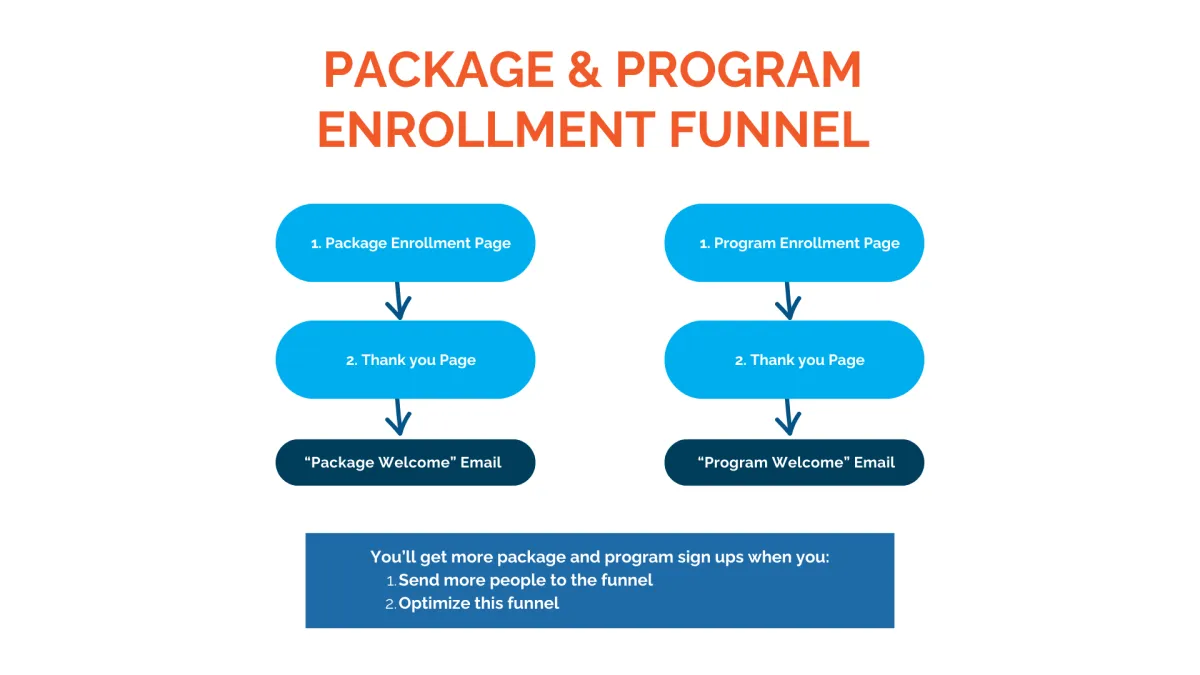
4. Package Funnel:
Intended Result: Elegantly taking payment (with less effort).
5. Program Funnel:
Intended Result: Elegantly sign people up for your program.
WHEN YOU HAVE ALL 5 FUNNELS
Having all 5 funnels gives you the freedom and flexibility to run your business in a way that supports your lifestyle.
1 | Your people will start with your Free Gift Funnel (to get easy Opt-Ins).
2 | Then, they'll go to Event Funnel for Event Sign ups, OR Consult Funnel for Consult sign ups.
3 | Then, they'll go to Package Funnel to join your package OR Program Funnel to sign up for your program.
WHICH FUNNEL DO YOU SET UP FIRST, SECOND, THIRD?
Step 1 | Rank the 5 funnels above in the order they’ll be most useful to you.
Step 2 | Start with the funnel that will give you the result that is most important to you now.
Step 3 | Then, add funnels in priority order.
To see what is inside of each funnel, go to the diagrams at the bottom of this funnel. ⬇️
HOW TO EDIT YOUR FUNNEL
What Are the Basic Editing Tools?
BEFORE EDITING
Clone allows you to clone a page or the whole funnel.
Edit in New Tab allows you to edit the funnel page in a new tab.
EDITING
Write or Edit the way you would if you were typing in Google Docs.
Drag allows you to move rows around your page.
Duplicate allows you to duplicate a section or row.
Delete removes your row.
AFTER EDITING
Save allows you to save your work. It does autosave, but to be sure you don't lose anything, it's important to save your work frequently.
Publish after you save your work, so that the changes you make will be published.
Preview allows you to see the webpage that your people can see (and allows you to use the drop downs and click the links).
Versions will allow you to restore any of the last 30 saved versions of your page.
REPLACING PHOTOS
To replace photos in your Funnel page (like your banner or client photo), watch this quick video tour about editing and formatting your Funnel images here.
If you need to know how to upload images in your Thrive Media Library, watch this step-by-step video here.
SNAPSHOT MAINTENANCE
If Thrive does an update and you haven't touched the previous version, we recommend that you delete the previous version. You can do that by watching this 1-minute video. ↗️
The Difference Between “Working Draft” Version & “Preview” Version
There are 2 versions of all Funnel Pages.
Version 1 | The Working Draft
This is the version you can edit.
You will see orange boxes around the text and you'll find the "Get Support" button here.
How do you get to the Working Draft?
From the Funnel Steps menu, click on the blue button called "Edit." This will replace your current window
OR click the arrow pointing down and select "Edit in a new tab."
Version 2 | The Preview Version
This is the version your people will see.
This is where the links on the pages will be clickable.
How do you get to the Preview Version?
From the Working Draft Page, go to the upper right hand corner. Click the eye icon next to the white "Save" button.
The Preview Version will open in a new tab.
THE CONSULT FUNNEL
Why is a Consult Funnel Crucial to Success?
Delivering Consults is a surefire way to bring in clients. And the Consult Funnel will make it a lot easier to book lots of consults.
We cannot guarantee your immediate success when you launch your Consult Funnel because it may take a few months to dial your funnel in.
But... we can guarantee that it will be WAY harder to book consults consistently WITHOUT a really good Consult Funnel.
Because when your process is not automated (and you're doing everything manually) you'll work harder and make less money... which is the fast track to burn out.
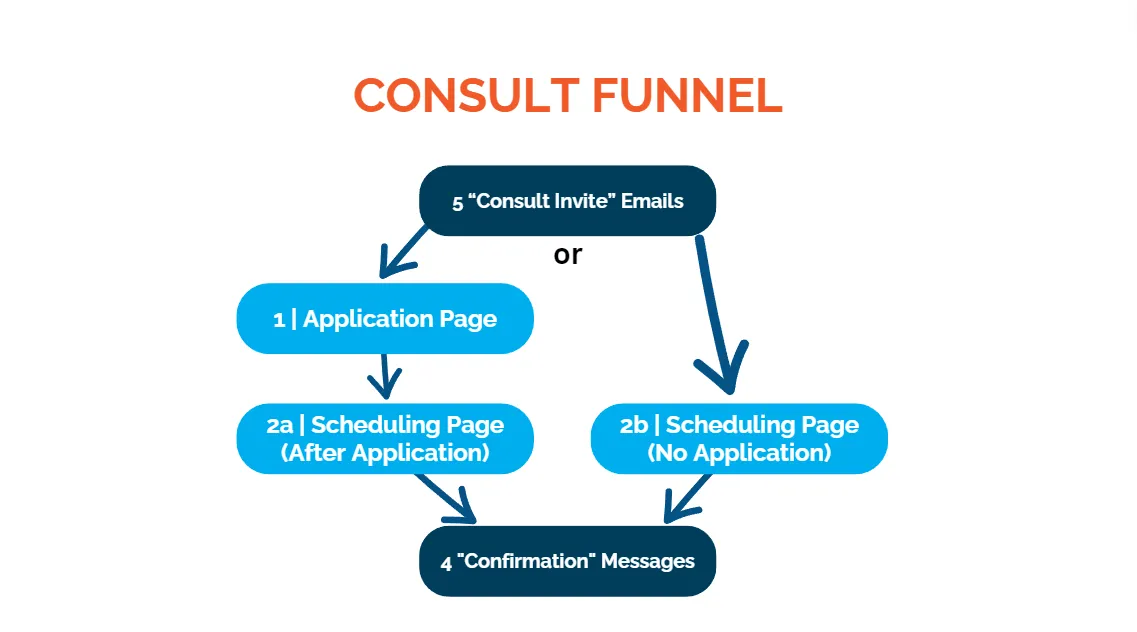
The Consult Funnel... Explained
Your Consult Funnel includes:
・2 Series of Emails (with 1 text)
・2 Webpages
2 SERIES OF EMAILS
5 "Consult Invite" Emails
This email series encourages people to SIGN UP for a Free Consult with you. It is automatically triggered when someone is tagged with "Consult Invite".
4 "Consult Confirmation" Messages
This series encourages your people who have signed up for your Consult to actually show up and receive your good stuff!
When you increase your sign ups and show ups, you can exponentially increase the number of new, high paying clients you receive.
2 WEBPAGES
Application Page
This 1st page guides your potential clients to apply for a Consult with you.
The Application Page is optional. You can skip this page and send them straight to the Scheduling Page if you'd like.
Scheduling Page
This 2nd page guides your potential clients to schedule a Consult with you.
After they submit their Application, they will be taken here and shown the available slots in your calendar.
Confirming the Session
After your people schedule their session, the scheduling page automatically gives them a confirmation update.
This message confirms the booking and allows your people to add the session to their calendar.
CONSULT FUNNEL PAGES
1 | Consult Application Page
Video Walkthrough
The Consult Application Page invites them to apply for a session with you and automates these opt-ins.
The fancy feature that come with this Application Page is the Consult Application Form.
APPLICATION FORM
At the bottom of this page, your people will fill out the Consult Application 7.0 Form by filling in their Name & Email.
Once they opt-in, they'll be taken to the Scheduling Page.
How can I edit the Consult Application Form?
Step 1 | On your Thrive Machine account, select the “Sites” tab on the left side.
Step 2 | At the top navigation bar, select “Forms” and then go to “Builder.”
Step 3 | Look for the form you want to edit by scrolling through the 7.0 Forms, OR manually search for them in the right search bar.
Step 4 | Change the form by directly editing the fields, For more detailed instructions to edit your forms, click here ↗️.
2 | Consult Scheduling Page
Video Walkthrough
The Consult Scheduling Page lets them schedule a Consult and book a session with you.
The fancy feature that come with this Scheduling Page is the Consult Calendar.
CONSULT CALENDAR
On this page, your people will be shown the available slots in your calendar.
After they schedule a session, they'll receive the 4 "Consult Confirmation" Messages.
Confirming the Session
After opting in, the calendar will be replaced by a confirmation update.
This update confirms the booking and allows your people to add the session to their calendar.
How can I edit the Consult Update?
Step 1 | Click on "Calendars" on the left side of your Thrive Machine.
Step 2 | Select "Calendar Settings" at the top navigation bar.
Step 3 | Look for your Consult Calendar.
Step 4 | Click the 3 dots on the right side and select "Edit."
Note: You may want to include your email address in the Confirmation Update.
CONSULT FUNNEL EMAILS
How Do the Emails Work?
Video Walkthrough
This funnel comes with 8 emails and 1 text. You can see all the messages in the Consult Funnel Workflows 7.0.
5 "Consult Invite" Emails
3 "Consult Confirmation" Emails & 1 "Consult Confirmation" Text
The messages start and stop based on the automations that we have built for you.
1. You can add or remove emails (or texts) inside the Workflow.
2 You can change the Wait Time in between each email or text (so that the emails are sent more frequently or less frequently).
How do the links work in my emails?
In your emails, you will see call-to-action (CTA) phrases like “Reserve Your Spot Now,” or “Book a Call".
These links take your people to a webpage in your funnel. The links are embedded into the CTA phrases, so you have short & clean links, and are more likely to get clicks.
If you edit or remove these links, make sure to test them before launching… (to ensure that the links work as intended).
Want to edit your CTA links?
・Go to the Settings Tab on the bottom left of your Thrive Machine account.
・On the left side, scroll down and click on "Custom Values."
・Go to the Folders tab and click "Snapshot Assets."
・Click on the three dots of your page link and choose "Edit the custom value."
・Change the link to your preferred webpage.
5 "Consult Invite" Emails
Video Walkthrough
The purpose of the 5 "Consult Invite" Emails is to encourage your people to sign up for a Free Consult with you.
When do the "Consult Invite" Emails get sent?
This email series automatically initiates when they are manually added to the “Consult Invite” tag. They will receive:
Invite Email 1: (Immediately after added Tag)
Invite Email 2: (1 day after added Tag)
Invite Email 3: (3 days after added Tag)
Invite Email 4: (5 days after added Tag)
Invite Email 5: (7 days after added Tag)
Where will I find the "Consult Invite" Email Series?
Go to: Automations / Workflows
Consult Funnel Workflows / 1 | Invite Them to Consult
How do I initiate this email series?
Step 1 | Check the box of the person/people you want to add.
Step 2 | Click the “Add Tag” button in the top navigation bar.
Step 3 | Choose the tag you want added from the dropdown menu.
Will They Continue to get Consult Invite Emails AFTER they Sign Up for the Consult?
No, they will automatically be moved to the Confirmation Email Sequence (described in the next section).
The automations are:
2 | When They Apply for Consult
Remove from Workflow - 1 | Invite Them to Consult
4 "Consult Confirmation" Messages
Video Walkthrough
The purpose of the 4 "Consult Confirmation" Messages is to encourage the people who signed up for your Free Consult to show up for it.
When do the "Consult Confirmation" Messages get sent?
This email series will start automatically, as soon as they sign up for your Free Consult.
Confirmation Email 1 (Immediate)
Confirmation Text (5 mins after booking)
Confirmation Email 2 (24 hrs before consult)
Confirmation Email 3 (1 hr before consult)
Where will I find the "Consult Confirmation" Messages?
Go to: Automations / Workflows
Consult Funnel Workflows / 3 | When They Schedule Consult
What if they Cancel the Appointment?
If someone cancels the appointment, they will be removed from this series, and you will automatically receive an email letting you know that the appointment was cancelled.
How to Edit Your Emails & Automations
Step 1 | Go to Automations.
Go to the Left Column of Thrive Machine and click "Automations". Then, click on Consult Funnel Workflows 7.0. You'll see:
1 | Invite Them to Consult
2 | When They Apply for Consult
3 | When They Schedule for Consult
Step 2 | Click on the Automation you'd like to edit.
If you'd like to edit emails, click on the Email you'd like to edit.
Step 3 | Send Yourself a "Test Email."
・The email editor is on the right side of the workflow.
・At the bottom of the Email Editor, enter your email address where it says: "Test Mail."
・Then click "Send Test Mail."
Step 4 | Find the "Test Email" in your inbox.
Check Spam or Junk if it doesn't arrive within 1-2 minutes.
Step 5 | Copy / Paste Into Your Email Editor.
Copy the test email from your inbox & paste it into the Thrive Machine Email Editor. (Replace the copy that was previously there.)
Step 6 | Edit your email inside the Email Editor.
If you'd like to expand the space to write your email, drag the lower right corner toward the bottom of the screen.
Step 7 | Save it twice.
Click the blue "Save Action" button in the lower right corner. Then click the blue "Save" Button in the upper right corner.
Step 8 | Edit the Delay Between Emails (Optional).
Step 1: Click the box you'd like to adjust (it starts with "Wait").
Step 2: Adjust the when: months, days, hours, minutes (as needed).
KEYS TO A SUCCESSFUL FUNNEL
Application Form | The Key to Getting Great Consults
The Application Form will help you choose who to deliver a consult to.... and it will help you go deeper in the consult (and get more clients).
At the bottom of the Consult Application Page, you'll see the application (which is a series of questions).
How can I edit the forms?
Step 1 | On your Thrive Machine account, select the “Sites” tab on the left side.
Step 2 | At the top navigation bar, select “Forms” and then go to “Builder.”
Step 3 | Look for the form you want to edit by scrolling through the 7.0 Forms, OR manually search for them in the right search bar.
Step 4 | Change the form by directly editing the fields,
For more detailed instructions to edit your forms, click here ↗️.
How do I respond if someone doesn't seem like a good fit?
We have created 2 email templates for you to help you address people who might not be a good fit:
1 | Application Received (Questioning if It's a good fit)
2 | Application Declined (Not a good fit)
You can find them here:
Marketing > Emails > Templates > Application Form Email Templates
Tags | The Key to Segmenting the Emails You Send
Why are Tags Important?
You can use Tags to segment your people. This allows you to ensure that the right people get the right emails.
There are 2 ways to tag people:
1. You can manually tag people.
2. You can automate tagging (when your people take specific actions).
1. How does manual tagging work?
Let's say that you go to an event and 10 people say that they're interested in your email list, your free gift, your consult, or your event. You can tag them with any of the 4 tags listed below, and they'll automatically get the emails associated with those tags (see below for details).
Step 1 | Check the box of the person/people you want to add in the Contacts tab on the left.
Step 2 | Click the add tag button in the top navigation bar.
Step 3 | Choose the tag you want added from the dropdown menu.
2. How does automated tagging work?
Click on the Automations tab, and you can set up tag automations.
But, to make this easier for you, Thrive has set up 4 Tags that are automated inside your Thrive-Built Funnels.
Tag 1 | “Opt-In List” Tag
Your "Opt-In List" Tag will be your main email list that can provide you clients for years (and that you can use to promote JV Partners).
Your people will be added to the “Opt-In List” Tag in 2 ways:
1. Automatically, when they opt in to your Free Gift Funnel, Consult Funnel or Event Funnel.
2. Manually, when you tag them with “Opt-In List.”
Tag 2 | “Free Gift Invite” Tag
This automation is part of the Free Gift Funnel.
When someone is manually tagged with "Free Gift Invite", they'll automatically receive the 3 "Free Gift Invite" Emails.
Once they opt in for your free gift:
a | If your Consult Funnel is connected they'll automatically get the "Consult Invite" Tag.
b | If your Event Funnel is connected, they'll automatically get the "Event Invite" Tag.
Tag 3 | "Consult Invite" Tag
This automation is part of the Consult Funnel.
When someone is manually or automatically tagged with the "Consult Invite" tag, they'll get the 5 "Consult Invite" Email Series.
Tag 4 | "Event Invite" Tag
This automation is part of the Event Funnel.
When someone is manually or automatically tagged with the "Event Invite" tag, they'll get the 5 "Event Sign Up" Email Series.
Can I continue to segment my emails based on tags?
Yes. For example, you can email the people who expressed interest in your event by sending an email to them with the "Event Invite" tag.
How do I send additional emails (based on tags)?
Step 1 | Go to the Contacts Tab.
Step 2 | Do a Quick Search for the tag you're looking for (eg. Consult Invite).
Step 3 | Click the Send Email Button (and follow the instructions).
Pipeline | The Key to Organizing Your People
Your Pipeline is reserved for your warmest potential clients. Your pipeline will be filled with people you’ll follow up with until they either become a client (or referral partner) or they stop responding to your private messages.
You may get hundreds (or thousands of people) who opt in, and you can continue to email them, inviting them to engage more.
Your Thrive Funnel automatically adds people to your Potential Clients Pipeline when:
・They apply for a consult
・They schedule a consult
・They sign up for your event
You can manually add “interested people” to your pipeline:
Step 1 | Go to the Contacts Tab.
Step 2 | Click on the Name (or Names) of Your Potential Clients.
Step 3 | Select the Pipeline, Stage in the Pipeline, and create a name for the action.
You can drag them through the stages as you continue your relationship with them.
PREPARE TO LAUNCH 🚀
Create Your Unsubscribe Links & Privacy Policy
Privacy Policy
You'll need a privacy policy on all your Funnel Webpages to stay in compliance. You can find Privacy Policies for Webpages on Google or ChatGPT.
If Thrive has built your funnel for you, your Privacy Policy has been automatically added to your Funnel Webpages.
But, if you are building your funnel yourself and need to insert your privacy policy in your Webpages, click here ↗️.
Unsubscribe Link
You'll need an Unsubscribe Link for every automated or group email you send. This was automatically added to all your Funnel Emails.
If you send texts (besides appointment reminders) please include this at the end of your text: Reply STOP to unsubscribe
These will help you avoid SPAM complaints and keep your Email Deliverability higher.
If someone asks you to unsubscribe them from your email list:
Go to their contact record and click DND (do not disturb) which means that you’ll no longer be able to call, text or email them.
Your "HUB Assets" in This Funnel
To make it much easier to build your funnel, the assets you create inside the HUB, transfer to Thrive Machine Funnels and emails.
Client Attraction Mastery Assets
02 » Credibility Statement(s)
03.1 » People
03.2 » Problem
03.3 » Result
06.1 » Short Code (2-4 Sentences)
09 » Success Story (or Stories)
Updating Your Assets in the HUB
When you update your Assets in the HUB, your Assets will update inside all the Funnel Webpages and Emails.
In the Working Draft Version
You will see the long "code name" of each custom value.
But you won't see the Asset that you entered into the HUB.
In the Preview Version
Click the "eye" button in the upper right corner of your screen:
You will see what your people will see when they click on your Funnel Webpage.
But, you can't edit your Asset in the Preview Page.
Here's What We Recommend:
Step 1 | From your working draft, click the "eye" button. (The Preview Version will open in another tab.)
Step 2 | From your Preview Version, copy the section with your Assets and paste it OVER the same sections in the Working Draft.
Step 3 | Edit the sections in your Working Draft so the words flow elegantly.
Step 4 | Click Preview to view what your people will see when they're visiting your webpage.
What If I Don't Want to "Write Over" the Original "Assets Code"?
1. You can always clone your funnel page before you make changes.
2. You can restore previous versions. (See "What Are the Basic Editing Tools?" section above for instructions.)
Email [email protected]
1. If you want to start over. We can add a new webpage or funnel back into your account.
2. If your assets in the HUB are not transferring to your Funnel or Emails.
Desktop vs. Mobile Versions
Your Funnel Webpage is made up of rows (or layers).
Most rows have 1 version that works for desktop and mobile. When you see a row with 2 versions, it means that we created a mobile version for that row to ensure good formatting for both versions.
How do I see the Layers (Rows) in My Funnel?
Go to the upper left corner of your screen, and click on the icon that looks like a stack of 3 pancakes (next to the + icon).
Making Changes to that Row
If you make a change to the mobile version, you'll have to make the same change to the desktop version (and vice-versa).
Testing Your Funnel
When you’re testing your funnel, always check both desktop and mobile versions to make sure both look good!
How do I See the Mobile & Desktop Versions?
When you're on the Funnel Page, click on the desktop and mobile icons in the top center of your screen.
TEST YOUR FUNNEL BEFORE GOING LIVE!
1a | Test Your Application Page
Test Your Application Page (on desktop & mobile)
1 | Copy/Paste your Application Page URL into an incognito browser.
2 | Review all your copy and formatting.
3 | Click all 3 "Apply for a Session" button.
4 | Fill in the Application Form and check the boxes that say:
・Check here to receive valuable insights about _____.
・By providing my mobile number, I agree to receive texts from _____.
5 | Submit your answers.
GREAT JOB!!!
2a | Test Your Scheduling Page
Test Your Scheduling Page (on desktop & mobile)
1 | Copy/Paste your Scheduling Page URL into an incognito browser.
2 | Review all your copy and formatting.
3 | Click on the 3 "Book a Call" buttons OR "Choose Your Time Below."
4 | On your Consult Calendar, choose a date/time and answer the fields.
5 | Submit your answers.
YOU ROCK!!!
3a | Test Your Emails
Test all 9 Consult Funnel Emails (using this process)
・Go to Automations / Consult Funnel Workflows 7.0.
・Open "1 | Invite Them to Consult" and start with Consult Invite Email 1.
・The email will open in the Email Editor (on the right side of workflow).
・Go to the bottom of Email Editor to "Test Mail."
・Enter your email. Click "Send Test Mail."
・Repeat for the rest of the remaining emails and workflows.
1b | Your Application Page is Ready If...
Your Application Page is Ready If...
1 | Your Application Page appeared after entering your URL.
2 | You are happy with the copy and formatting.
3 | Clicking all 3 buttons takes you down to your Application Form.
4 | You were able to fill out the fields and check both boxes.
5 | After you submitted your answers:
a. You were taken to the Scheduling Page.
b. You received the "Opt-In List" tag.
c, You were added to "Warm Potential Clients" Pipeline.
d. You were able to find your answers to the application under:
Sites > Forms > Submissions > 7.0 Consult Application
2b | Your Scheduling Page is Ready If...
Your Scheduling Page is Ready If...
1 | Your Scheduling Page appeared after entering your URL.
2 | You are happy with the copy and formatting.
3 | You were taken down to your Consult Calendar.
4 | Your Consult Calendar has availability.
5 | After you submitted your answers:
a. Your calendar was replaced by the confirmation update.
b. You were added to "Booked Consults" in "Warm Potential Clients" Pipeline.
c. You got an email within 1-2 mins.
d. You scheduled a consult & it showed up in your personal calendar.
3b | Your Emails Are Ready If...
Your Emails are Ready if you're happy with:
1. Who it's from.
2. Who it's to.
3. The Subject.
4. The Copy inside the email.
5. The Links work.
6. Dates & Times are correct.
7. Your Unsubscribe link is present.
Troubleshoot Funnel Issues
INTRO TO TROUBLESHOOTING
If you are testing your funnel and there's an issue, this Troubleshooting Guide, should help you sort it out. If this guide doesn't resolve your issue....
Thrive is here to help you get onboarded and build your funnels for you. But we are not set up to be your Tech Support (when you inevitably run into tech challenges).
We have hired a huge team to support you 24/7 through chat, and Zoom. To reach this team, click the "Get Support" button (lower right corner of your Thrive Machine) to get super fast troubleshooting support.
And, you can click here to learn more about the 5 branches of tech support available to you.
PAGE 1 | APPLICATION PAGE TROUBLESHOOTING
Application Page Video Walkthrough
1 | If your URL Doesn't Work.
・Here's how to connect your domain ↗️
・Still not working? Use the "Get Support" Button or book a Specialty Coaching Session (Tech Guidance) to troubleshoot your domain issue.
2 | If you're not Happy with the Copy or Formatting.
・Update it using What Are the Basic Editing Tools? section above ⬆️
・Need extra support? Use the "Get Support" Button or book a Specialty Coaching Session (Tech Guidance) or a Specialty Call (Copy Coaching) ↗️
3 | If clicking any of the 3 "Apply for a Session/Book a Call" buttons, didn't scroll you down to the Application Form.
・Open 1a | Consult Application Page (Working Draft version).
・Scroll down and click the "Apply for a Session" button. (Make sure it's highlighted in orange.)
・On the right, you will see the General button settings.
・Scroll down all the way to "Button Actions" at the bottom.
・Open the "link to" dropdown and select "Scroll to Element" option.
・Directly below that, select "7 Application CTA" option.
・Click Save. Then, click Publish.
4 | If you want to change the copy of questions or the boxes on the Application Form.
・Edit the Application Form Questions using this guide ↗️
5a | If you applied for a consult but weren't taken to Your Scheduling Page.
・Open 1a | Consult Application Page (Working Draft version).
・Click the Application Form at the bottom. (Make sure it's highlighted in orange).
・On the right, under the "Button Actions" click the "Redirect action" dropdown.
・Select the "Go to Next Page" option.
・Click Save. Then, click Publish.
5b | If you didn't receive the "Opt-In List" tag.
・Go to Automations / Workflows / Consult Funnel Workflows
・Go to your first workflow step or 1 | Invite Them to Consult.
・Look for the automation called ["Opt-In List" Tag is Automatically Added"].
・Select the “Tags” dropdown and choose the "Opt-In List" Tag
・Select the blue button at the right-bottom side called "Save Action". And then save it again at the top-right corner.
5c | If you weren't added to "Warm Potential Clients" Pipeline.
・Go to Automations / Workflows / Consult Funnel Workflows
・Go to your second workflow step or 2 | When They Apply for Consult.
・Look for the automation called [Add to "Potential Clients" Pipeline].
・Select the "In Pipeline" dropdown and choose "Warm Potential Clients".
・Select the blue button at the right-bottom side called "Save Action". And then save it again at the top-right corner.
5d | If you didn't find the answers in Form Submissions.
・Open 1a | Consult Application Page (Working Draft version).
・Click the Application Form at the bottom. (Make sure it's highlighted in orange).
・On the right, underneath Margin & Padding preview, click on the dropdown.
・Select the "7.0 Consult Application" option.
・Click Save. Then, click Publish.
PAGE 2 | SCHEDULING PAGE (AFTER APPLICATION) TROUBLESHOOTING
Scheduling Page Video Walkthrough
1 | If your URL Doesn't Work.
・Here's how to connect your domain ↗️
・Still not working? Use the "Get Support" Button or book a Specialty Coaching Session (Tech Guidance) to troubleshoot your domain issue.
2 | If you're not Happy with the Copy or Formatting.
・Update it using What Are the Basic Editing Tools? section above ⬆️
・Need extra support? Use the "Get Support" Button or book a Specialty Coaching Session (Tech Guidance) or a Specialty Call (Copy Coaching) ↗️
3 | If clicking the "Book a Call" button(s) or "Choose Your Time Below", didn't scroll you down to your Consult Calendar.
For 2a | Scheduling Page (After Application):
・Open your Scheduling Page (Working Draft version).
・Scroll down and click the "Choose Your Time Below" button. (Make sure it's highlighted in orange.)
・On the right, you will see the General button settings.
・Scroll down all the way to "Button Actions" at the bottom.
・Open the "link to" dropdown and select "Scroll to Element" option.
・Below that where it says "Scroll to Element", select the "Calendar" option.
・Click Save. Then, click Publish.
For 2b | Scheduling Page (No Application):
・Open your Scheduling Page (Working Draft version).
・Scroll down and click the "Book a Call" button. (Make sure it's highlighted in orange.)
・On the right, you will see the General button settings.
・Scroll down all the way to "Button Actions" at the bottom.
・Open the "link to" dropdown and select "Scroll to Element" option.
・Directly below that, select "7 Schedule Consult #3" option.
・Click Save. Then, click Publish.
4 | If your Consult Calendar has no availability.
・On your Thrive Machine account, go to Calendars, then Calendar Settings.
・At the top right, select Availability.
・Under "My Availability", adjust the "Working Hours" by checking the days you're free.
・Then, click on "Add Time" below each day.
・Click the blue "Add Availability" button to save your changes.
5a | If you'd like to change the copy on the Confirmation Update.
・Click on "Calendars" on the left side of your Thrive Machine.
・Select "Calendar Settings" at the top navigation bar.
・Look for your Consult Calendar that's connected to your Consult Funnel.
・Click the 3 dots on the right side and select "Edit."
・On the right menu, select "Forms & Payment."
・Scroll down to "Confirmation Page" and edit the "Thank you message" field.
・Click "Save" at the upper right side.
Note: You may want to include your email address in the Confirmation Update.
5b | If you weren't added to the "Booked Consults" column in the "Warm Potential Clients" Pipeline.
・Go to Automations / Workflows / Consult Funnel Workflows
・Go to your second workflow step or 3 | When They Schedule Consult.
・Look for the automation called [Add to "Potential Clients" Pipeline].
・Select the "In Pipeline" dropdown and choose "Warm Potential Clients".
・Below that, select the "In Pipeline Stage" dropdown and choose "Booked Consult".
・Select the blue button at the right-bottom side called "Save Action". And then save it again at the top-right corner.
5c | If you didn't get a Confirmation Email within 1-2 mins.
・Check your junk and spam.
・Try opting in again and make sure you entered the correct email address.
・Make sure DND is not turned on for your account.
・Check the automation to make sure the first email is set up to be automatically sent, immediately after opting in.
5d | You scheduled a consult & it didn't show up in your personal calendar.
・On your Thrive Machine account, go to Settings at the bottom left.
・Look for My Profile, then select Calendar Settings.
・If there is no calendar connected yet, click on "Add New" button to connect your calendar.
・If your primary calendar is already listed, go to "Calendar Configuration".
・In the "Linked Calendar" row, click "Edit" on the right, then select your primary calendar email address.
・Select other calendars that you would like to check for conflicts in "Conflict Calendars" to avoid double-booking.
EMAIL TROUBLESHOOTING
If you want to edit any of your emails (or the wait times between emails).
・Check out How to Edit Your Emails & Automations above ⬆️
If you didn't receive the emails you sent to yourself.
・Check junk or spam.
FUNNEL DIAGRAMS


© 2023 THRIVE ACADEMY. ALL RIGHTS RESERVED
© 2023 THRIVE ACADEMY. ALL RIGHTS RESERVED